Snapshots
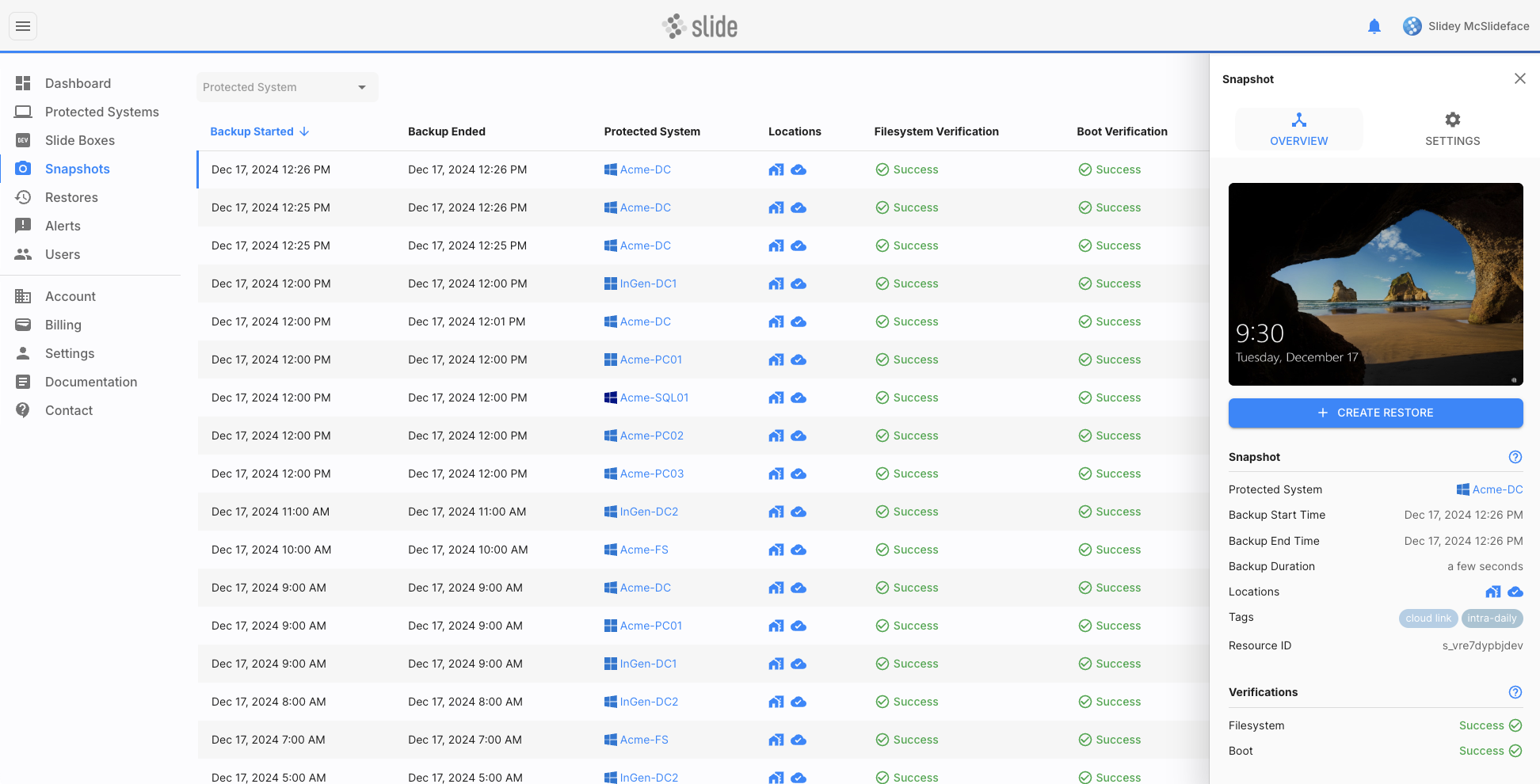
The Snapshots page shows a list of all snapshots that have been taken of your protected systems. A snapshot is an image copy of the protected system that can be used to restore your system. Snapshots are created when a backup succeeds. Clicking on a snapshot will show you more details about the snapshot, and allow you to restore from it.
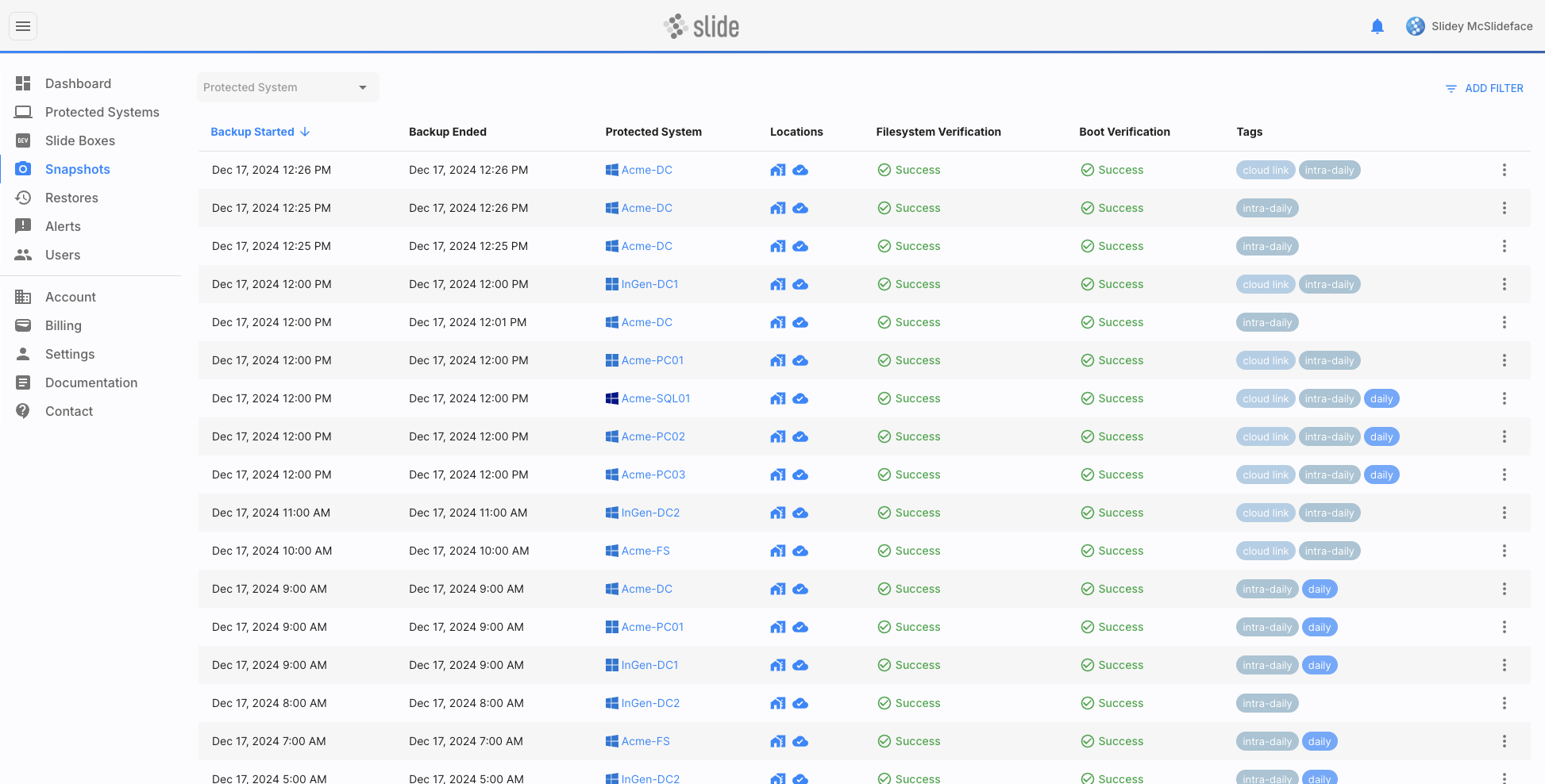
The main snapshot list shows the following information:
- Backup Started/Ended: Start and end time of the backup corresponding to this snapshot.
- Protected System: Name of the protected system that was backed up.
- Local: Indicates whether the snapshot is stored locally () on the Slide Box, or whether it was already deleted (), e.g. due to a retention policy or manual deletion.
- Cloud: Indicates whether the snapshot is stored in the Slide Cloud (), or whether it was already deleted (), e.g. due to a retention policy or manual deletion.
-
Verified: Shows a green checkmark () if the snapshot was fully verified, i.e. successful boot, file system integrity of the snapshot was confirmed, and service verification with no services failing. Shows an orange checkmark () if file system or service verification failed and boot verification succeeded. Shows a red checkmark () if boot verification failed. Hover over the indicator to get a more detailed status report.
-
Tags: Snapshots automatically get tagged for various reasons:
- Retention Tags: Snapshots tagged "intra-daily", "daily", "weekly", "monthly", or "yearly" are kept for the corresponding retention period. See Snapshot Retention for more details.
- Restore Tag: Snapshots tagged "restore" have an active restore. Check the Restores page for more information.
- Cloud Link Tag: Snapshots tagged "cloud link" are the crucial link between the local and remote backup chain in the Slide Cloud. This is typically the latest snapshot that was uploaded to the Slide Cloud. Only one snapshot per protected system can have this tag. Snapshots with this tag cannot be deleted.
- Self-Healing Tag: Snapshots tagged "self-heal-diff" signal that boot verification self-healing was performed as part of this backup.
- Actions: The last column shows a three-dot menu from which you can either create a restore, or delete the snapshot locally or in the Slide Cloud. The available actions depend on the snapshot's state. See Restoring from a Snapshot and Deleting a Snapshot for details.
Searching & Filtering
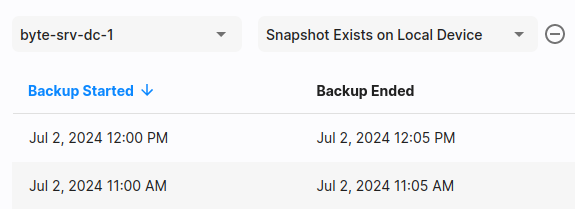
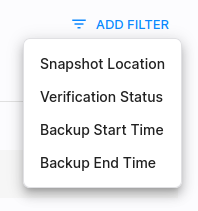
The list of snapshots can be filtered, so you can easily find the snapshot you are looking for. You can filter by:
- The name of the protected system
- The location of the snapshot (local or Slide Cloud)
- The verification status (verification succeeded or failed)
- The backup start/end time
Verification Results
Each snapshot displays the results of up to three automated verifications run by Slide after a successful backup. Results are shown in the snapshot sidebar.
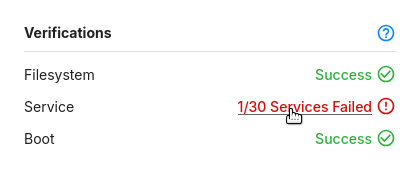
- File System: Checks the integrity of the snapshot's file system. A success means Slide was able to mount and read the backup data without errors.
-
Boot: Tests that your system can boot to a login screen inside a temporary verification VM. A success means Slide confirmed the system reached a desktop or login prompt. If boot verification fails, an alert is sent. See Boot Verification Alerts. To ensure an isolated and accurate test, Slide applies the following modifications to the verification VM:
-
Microsoft Exchange services are disabled:
MSExchangeADTopology,MSExchangeServiceHostNote
Exchange services require network connectivity that is unavailable in the isolated verification VM and their startup time would interfere with boot verification.
-
Automatic reboot, passwordless login policy, video idle timeout, HVCI, and BCD boot status policy are disabled
-
-
Boot Duration: When boot verification succeeds, Slide records how long it took, from when the verification VM is powered on until the end of boot verification. This is available in the snapshot sidebar and via the API.
- Service: Checks that your configured services are running after the system boots in the verification VM. A success means all monitored services started correctly. A failure is an early warning, not a confirmed backup failure, see Service Verification Alerts for how to interpret and act on the results.
Note
Service Verification may show a Skipped status, this means there were no configured services to check during boot verification.
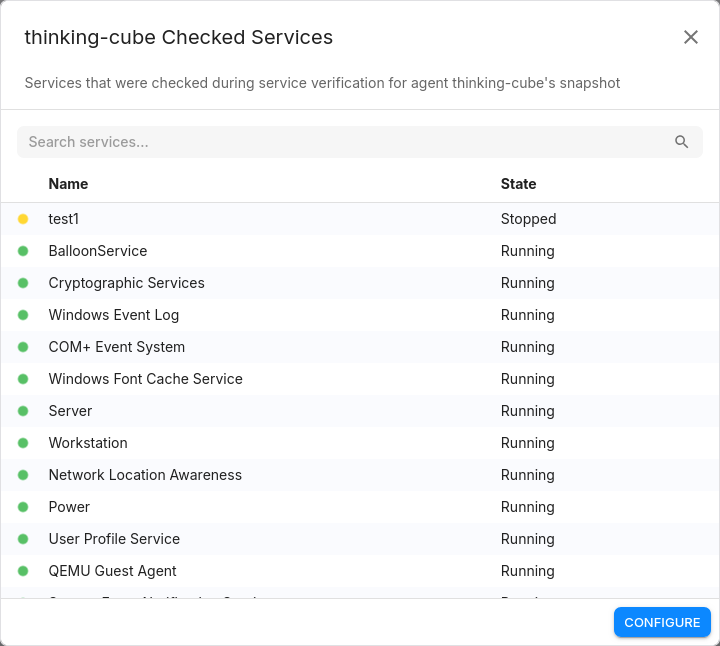
The service results can be clicked to show the status of all configured services at the time of verification. The list of services is fixed at snapshot creation. To update which services are verified in future snapshots, click the CONFIGURE button in the pane.
Restoring from a Snapshot
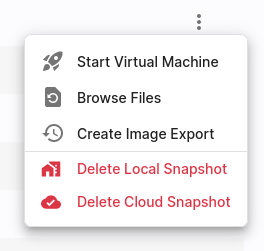
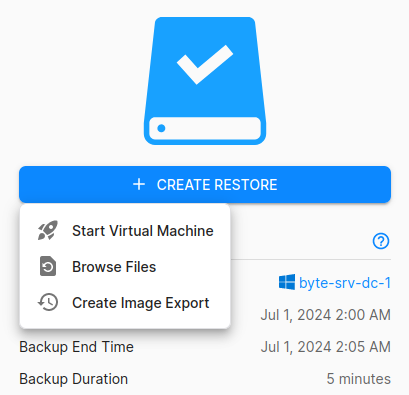
Using the three-dot menu in the snapshot list or the snapshot sidebar, you can create a restore from a snapshot. In the drop-down menu, you'll find a restore option for creating virtualizations, file restores, or image exports.
Snapshot Details
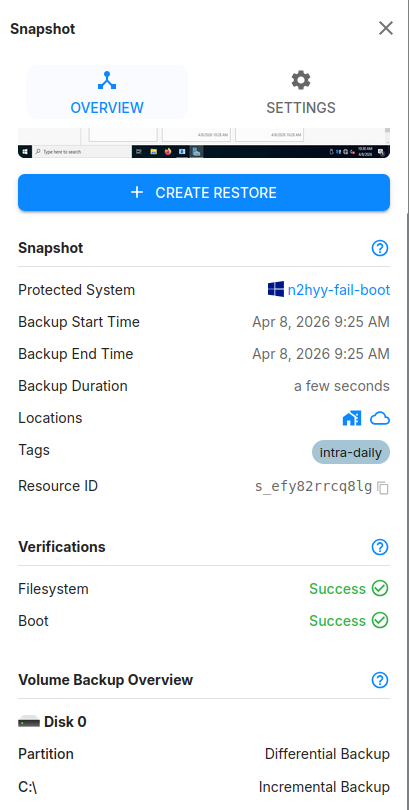
Clicking on a snapshot opens a details sidebar. The sidebar is organized into four sections:
- Header: A screenshot of the protected system taken during boot verification and the "Create Restore" button.
- Snapshot: Backup start and end times, the associated protected system, storage locations (local and cloud), tags, and the resource ID.
- Verifications: Results of the filesystem, service, and boot verification checks performed after the backup completed.
- Volume Backup Overview: The backup type used for each volume — Full, Incremental, or Differential. When a volume was backed up as part of a boot verification self-healing cycle, it will appear as "Self-Healing Differential Backup" rather than "Differential Backup".
Snapshot Retention
Snapshot retention refers to the policy or configuration that determines how long snapshots (successful point-in-time backups) are kept before they are automatically deleted. A detailed description of how snapshot retention works and what retention policies exist can be found on the Protected Systems page.
Deleting a Snapshot
Using the three-dot menu in the snapshot list or the Settings tab in the snapshot sidebar, you can manually delete a snapshot either locally on the Slide Box or in the Slide Cloud.
Usually snapshots are deleted automatically based on the snapshot retention policy. However, you can manually delete snapshots if you need to free up space or if you want to delete a snapshot that is not yet due for deletion.
Info
Note that snapshots with the "cloud link" tag cannot be deleted. These snapshots are the crucial link between the local and remote backup chain in the Slide Cloud. Deleting them would break the backup chain.