Alerts
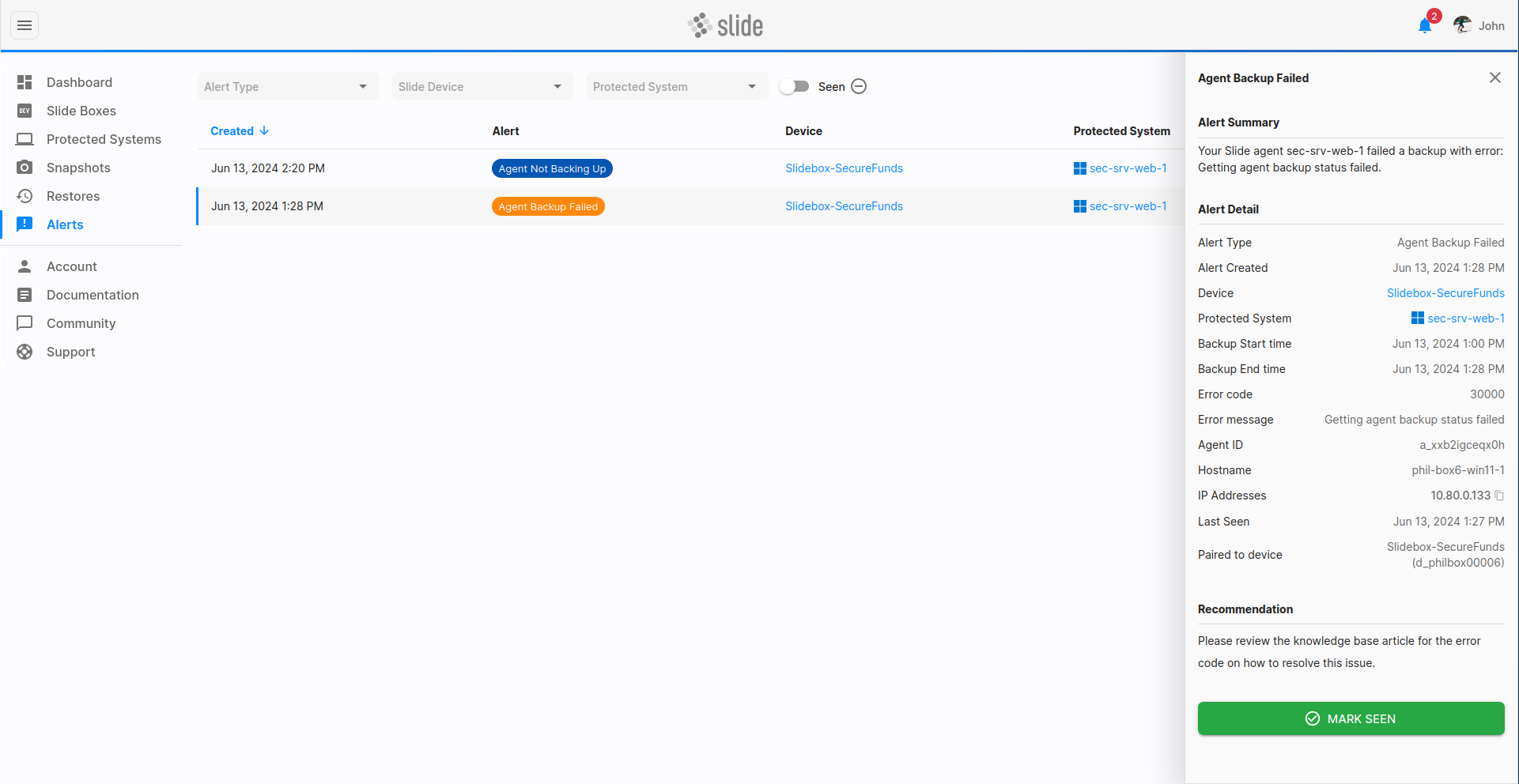
The Alerts page shows you all the alerts that have been generated in your Slide account. Alerts are generated when Slide detects an issue with a Slide Agent, or a Slide Box. You can filter the alerts by type, Slide Box, Protected System, and other relevant fields.
Alerting behavior
Alerts are generated when a specific condition is met, based on the status of Slide Agents, Slide Boxes or your account. For example, an alert will be generated for a failed backup or when a Slide Box is running out of disk space.
If an alert of the same type already exists for a certain Slide Agent or Slide Box, a new alert will not be generated.
Alerts can be resolved by marking them as "resolved". Once an alert is marked as "resolved", a new alert may be generated if the condition re-occurs. So be sure to correct the underlying issue before marking the alert as resolved, or contact support if you need help.
Email notifications
For each alert, an email notification is sent out to all users associated with the account that the alert resource (Box or Agent) is tied to. To disable alert email notifications for your account, visit the My Settings page.
All Slide alerts can also be sent to an email address of your choosing using the Alert Email List feature on the Account Settings page. Sending alerts to another email can be used by your PSA to create tickets from email alerts.
Please note that disabling email notifications will not disable the alert itself. It merely disables the email notification for the logged-in user.
Marking alerts resolved
Newly generated alerts are automatically marked as "not resolved". They can be marked resolved by clicking the "Resolve" button in the alert detail sidebar. While an alert is "not resolved", it will be included in the alert count above and to the right of the notification icon.
You can mark a specific alert as resolved using the big "Mark as resolved" button in the alert detail sidebar. This will decrease the number in the alert bell and change the alert's status to "resolved". If the alert condition now re-occurs (e.g. the Slide Agent goes offline again), a new alert will be generated.
Auto-resolving alerts
Certain alerts are automatically resolved when the underlying issue is fixed, eliminating the need to manually close alerts after addressing their root cause. For example, the "Slide Box Not Checking In" alert resolves itself once the Slide Box successfully checks back in.
As of today, the following alerts are auto-resolved:
- Slide Box Not Checking In
- Slide Box Version Out Of Date
- Slide Box Storage Not Healthy
- Slide Box Storage Space Low/Critical
- Agent Not Checking In
- Agent Backup Failed
- Boot Verification Failed
To prevent alerts from repeatedly triggering and resolving too quickly for recurring issues, auto-resolution occurs no sooner than three days after the alert is created.
Alert types
This section describes the different types of alerts that can be generated in Slide.
Slide Box alerts
Slide Box Not Checking In
This alert is triggered if your Slide Box has not been seen by the Slide Cloud in over 4 hours.
It is assumed that your Slide Box is constantly connected to the internet, and is able to connect to the Slide Cloud. If this alert is triggered, please check if your Slide Box is online and connected to the internet, and that it can connect to cloud.slide.tech and other Slide services.
Refer to the networking requirements for more information.
This alert is eventually auto-resolved once the Slide Box checks back in.
Slide Box Storage Not Healthy
This alert is triggered if your Slide Box's storage has entered an unhealthy state. This could be due to a failing hard drive, or other storage-related issues.
Please contact support if you see this alert. We will help you determine if the disk is bad, or how else to resolve the issue.
This alert is eventually auto-resolved once the storage is detected as healthy again.
Slide Box Storage Space Low/Critical
This alert is triggered if your Slide Box's backup storage is running low on space. There are two levels of this alert:
- Low: This alert is triggered if your Slide Box's storage is more than 80% full.
- Critical: This alert is triggered if your Slide Box's storage is more than 90% full.
There are a few possible reasons why your Slide Box's storage is running low:
- A lot of data churn: If your data on the Protected Systems changes frequently, your backups will be larger. Consider reducing the frequency of backups, or using a more aggressive retention policy.
- Too conservative retention: Your retention policy may be too conservative, and you may be keeping too many backups. Try adjusting your policy to "Lean" to keep fewer backups. You can do so in the Protected Systems sidebar.
To resolve this issue, you can either:
- Delete old backups: You can delete old backups to free up space. You can do so in the Snapshots page.
- Adjust retention policy: You can adjust the retention policy to keep fewer backups. You can do so in the Protected Systems page.
This alert is eventually auto-resolved once the storage space does not exceed the threshold anymore.
Slide Box Version Out Of Date
This alert is triggered if your Slide Box is running an outdated version of the Slide Box software for more than 7 days. This may be due to a virtualization restore or an ongoing long-running backup.
Please log in to your Console to check if any backups are in progress or if any virtualization restores are active.
This alert is eventually auto-resolved once the Slide Box is updated to the latest version.
Slide Agent alerts
Agent Not Checking In
This alert is triggered if your Slide Agent has not been seen by the Slide Cloud in over 24 hours.
It is assumed that your Slide Agent is somewhat regularly connected to the internet, and is able to connect to the Slide Cloud. If this alert is triggered, please check if your Slide Agent is online and connected to the internet, and that it can connect to cloud.slide.tech and other Slide services.
Refer to the networking requirements for more information.
This alert is eventually auto-resolved once the Slide Agent checks back in.
Scheduled backup did not run as planned
This alert is triggered if your Slide Agent has missed a scheduled backup, i.e. the last expected backup according to the backup schedule has not occurred.
There are a few possible reasons why your Slide Agent is not backing up:
- Previous backup is running long: If the previous backup is still running, the next backup cannot start, so a scheduled backup time is missed. This could be due to a large amount of data, or a slow network connection. To alleviate this, you should adjust the backup schedule to run less frequently, e.g. move from hourly backups to backups every two hours.
- Protected System or Slide Agent is offline: The Slide Agent may be offline, or the Slide Box may be offline. To alleviate this, make sure your Slide Agent and Slide Box are online and connected to the internet, and to each other. Check the Protected Systems page for the online indicator ().
Agent Backup Failed
This alert is triggered if your Slide Agent was not able to back up to your Slide Box. This could be due to a variety of reasons, such as a network issue, a Slide Box issue, or a Slide Agent issue.
Each backup failed alert has a unique error code and error message, which can be used to diagnose the issue. The error code is shown in the alert detail sidebar:
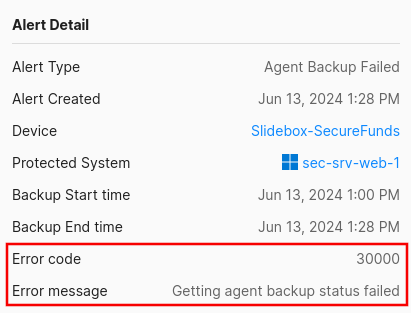
You can find descriptions and suggested resolutions in the Error Codes section. If the issue persists, please contact support.
This alert is eventually auto-resolved after the protected system has taken at least 10 consecutive successful backups.
Boot Verification Alerts
By default, every backup will run a series of verifications to validate success. During a boot verification, Slide will test to see that your system can boot to a login screen. If the system cannot be confirmed to have booted successfully, an alert will be sent including a screenshot of the screen at the end of the verification attempt. Service verification runs as part of this process and generates its own separate alert if services fail. See Service Verification Alerts below.
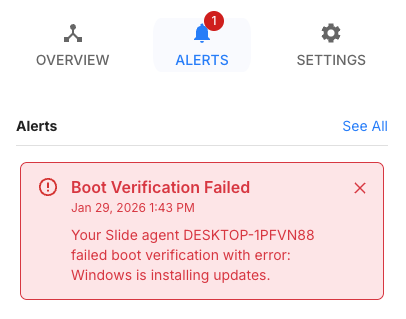
Each boot verification failed alert has a unique error message, which can be used to troubleshoot (e.g. Windows applying updates). The error message is shown in the alert detail sidebar:
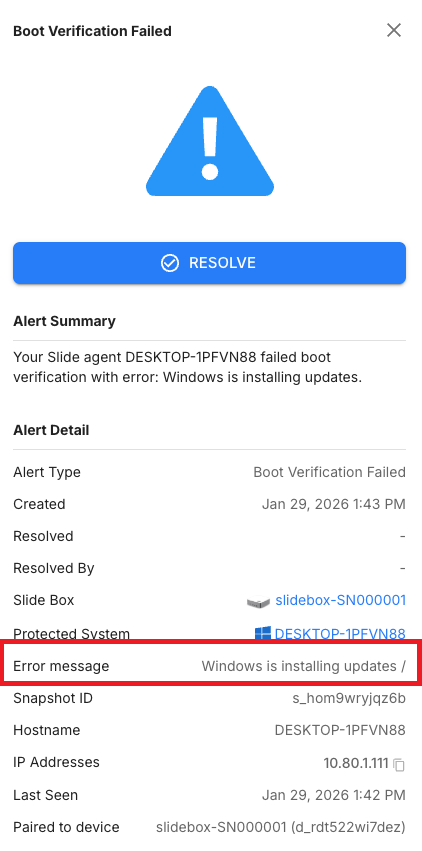
Troubleshooting a failed boot verification can vary based on the error message. In the case of a message like "Windows applying updates" the protected system will need to be updated so that boot verification can complete in the allotted time. If the issue persists, or you need assistance troubleshooting a boot verification failure, please contact support.
This alert is eventually auto-resolved after the protected system has taken at least 3 consecutive successful boot verifications.
If boot verification failures persist after a baseline of 3 consecutive successes has been established, Slide will automatically schedule a self-healing differential backup for the affected system's boot volumes. This happens after 5 consecutive failures and is intended to resolve failures caused by data inconsistencies without requiring manual intervention.
Service Verification Alerts
When boot verification succeeds but one or more configured services are not in the Running state at the end of the verification, a separate service verification alert is sent:
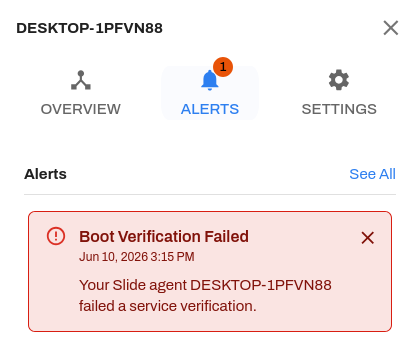
This alert does not mean your backup has failed. The alert signals that specific services did not reach a Running state inside the isolated verification environment and requires further investigation.
The alert includes a list of the affected services but does not include a screenshot. The same information is visible in the snapshot sidebar under Verification Results.
It's important to remember, Service Verification is a test of a backup in an environment that is not identical to production nor is it identical to how a true disaster VM will be set up. Verification VMs are created without networking and are short lived (less than 15 minutes). We do this intentionally so that verifications can complete in a timely manner. If a service expects a network connection, or takes longer to start than the verification run time, then it's likely they will fail to verify successfully.
When a service fails to verify, investigation should begin with creating a test VM on your Slide Box or in the Slide Cloud. From the test VM, check the Windows System event log filtered by source Service Control Manager. Look for startup errors, or a large gap between boot and the SCM event which may indicate the service is timing out. You can also enable network access to rule out connectivity-dependent failures.
Slide Support can assist in guiding your troubleshooting, but diagnosing the behavior of 3rd party applications is out of scope.
To investigate a service verification failure:
- Check which services failed. The alert email and the snapshot sidebar both list them.
- Look up whether those services need network access to start. If they do, the failure is expected and your backup is likely fine.
- If a critical service failed (database, line-of-business app), spin up a test VM to inspect the event logs and confirm the system is recoverable before relying on the backup.
- If a service consistently fails due to the isolated environment and you've confirmed the backup is healthy, remove it from the list via CONFIGURE SERVICE VERIFICATION on the Protected Systems page.
Troubleshooting
From the Slide Console, create a test virtualization for the affected snapshot on the Slide Box with no network. Start the VM and log into Windows.
Use Windows Event Viewer to compare the system boot time with the time a service entered the running state.
Events to Look For
| Event | Source | Event ID | What It Means |
|---|---|---|---|
| Boot | Microsoft-Windows-Kernel-General | 12 | Windows started |
| Service started | Service Control Manager | 7036 | A service entered the running state |
| Boot fallback | EventLog | 6005 | Event Log service started |
Use Event ID 12 as the boot time when available. Use Event ID 6005 only as a fallback.
Steps
- Open Event Viewer.
- Go to Windows Logs > System.
- In the right pane, click Filter Current Log...
- In Event sources, select
Microsoft-Windows-Kernel-General,Service Control Manager, andEventLog. - In Event IDs, enter
12,7036,6005. - Click OK.
Find the Boot Time
Look for Event ID 12 from source Microsoft-Windows-Kernel-General. This is the system boot event.
If Event ID 12 is not available, use Event ID 6005 from source EventLog as a fallback. This indicates the Event Log service started, which is close to but not exactly boot time.
Find the Service Start Time
Look for Event ID 7036 from source Service Control Manager. Open the event and find the entry that reads:
The [service name] service entered the running state.
Use the first matching service start event after the boot event.
Calculate the Time Difference
Subtract the boot event time from the service start event time.
Example:
In this example, the service started 43 seconds after boot.
Note
- Search by the service’s display name, not just the short service name.
- Make sure the service start event happened after the boot event.
- If there are multiple
7036events for the same service, use the first one after boot. - Use the event’s displayed timestamp consistently for both events.
Conflicting Agent Connection
This alert is triggered when two instances of the same Slide Agent connect to the Slide Cloud simultaneously from different machines. This typically occurs when a protected system has been imaged or virtualized, resulting in a duplicate agent running on a second machine with the same identity.
Please identify and shut down the duplicate machine immediately. Backup integrity may be impacted until the conflict is resolved, as both machines share the same agent identity and backup state.
The alert detail shows the gateway IP addresses of both the existing (active) connection and the new (conflicting) connection to help you identify which machine is the duplicate.
To resolve this alert:
- Identify the duplicate machine using the IP addresses shown in the alert.
- Shut down or disable the Slide Agent on the duplicate machine.
- Mark the alert as resolved once the duplicate has been removed.
If you need additional assistance in resolving this alert, please contact support.